Command line
The xxd command: hex dumps on Linux and macOS
Read the bytes in any file, get plain hex, turn hex back into binary, patch a byte and embed files in C.
xxd shows the bytes inside any file as a hex dump: an offset, the bytes in hex and the same bytes as text. Run xxd file and you see exactly what is stored, including the invisible characters a text editor hides. It can also run the other way and turn a hex dump back into a file, which makes it a small binary editor you drive from the shell.
Key takeaways
| xxd file prints a hex dump: the offset, the bytes in hex and the same bytes as text. | |
| -s and -l show part of a file, which is the quick way to check a file header such as the PNG signature. | |
| xxd -p prints plain hex, and xxd -r -p turns plain hex back into binary. | |
| xxd -r also writes bytes at the offsets in a dump, so you can patch one byte of a binary file. | |
| If xxd is missing, install the xxd package (vim-common on Fedora and older Debian), or use Git Bash on Windows. |
xxd hello.txt00000000: 4865 6c6c 6f2c 2077 6f72 6c64 210a Hello, world!.xxd comes with Vim, so it is already installed on most Linux systems and on macOS. If your shell says xxd: command not found, the last section of this guide shows how to install it. To look at a file without a terminal, the hex dump tool makes the same view in your browser.
How to read xxd output
Every line has three parts. Take the line above, which is the 14-byte file hello.txt.
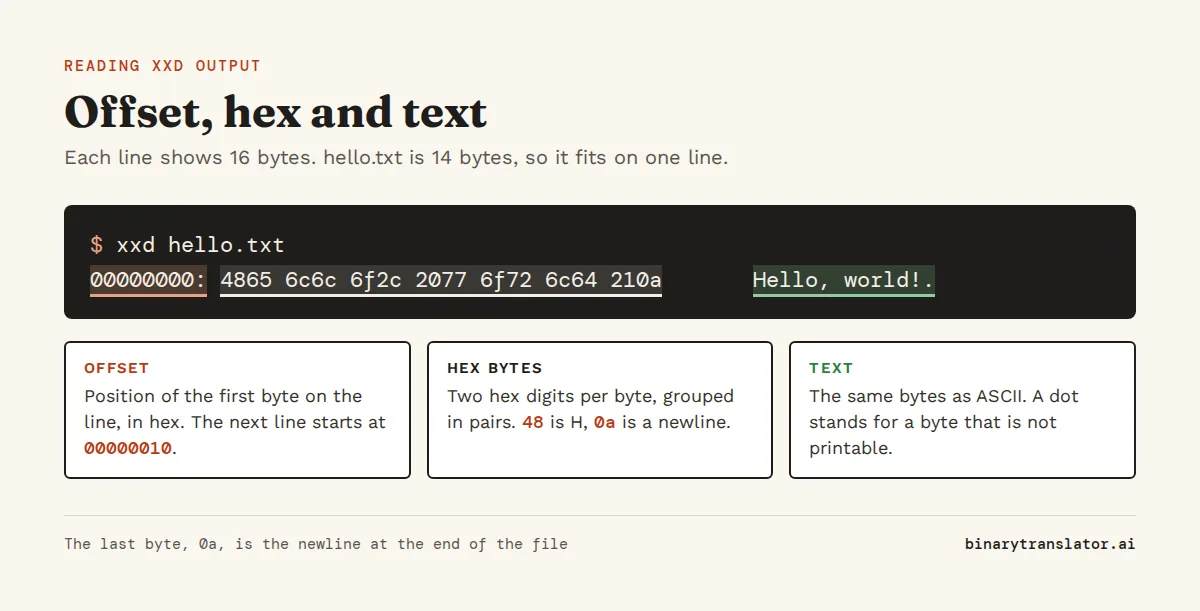
- The offset,
00000000:, is the position of the first byte on the line, counted from 0 and written in hex. The next line would start at00000010, which is byte 16. - The hex column shows the bytes two hex digits each, in groups of two bytes.
48is H,65is e and2cis a comma. - The text column shows each byte as an ASCII character, or a dot when the byte is not printable. The last dot is
0a, the newline at the end of the file.
That last byte is a common surprise. Most editors save a newline at the end of a file, and it counts as data. If a checksum or a Base64 value comes out different from what you expected, a stray 0a or a Windows 0d 0a at the end is the first thing to look for. The hex to text converter decodes a pasted row of hex if you want to check a few bytes by hand.
Show part of a file with -s and -l
A large file prints thousands of lines. -l stops after a number of bytes and -s starts at an offset, so you can look at just the part you need. File headers are the usual reason: the first bytes of a file say what kind of file it really is, whatever its name says.
xxd -l 16 dot.png00000000: 8950 4e47 0d0a 1a0a 0000 000d 4948 4452 .PNG........IHDRThe first eight bytes, 89 50 4e 47 0d 0a 1a 0a, are the PNG signature, with PNG visible in the text column. A JPEG starts with ff d8 ff and a PDF with %PDF. To start further in, give an offset, in decimal or with a 0x prefix in hex:
xxd -s 12 -l 8 dot.png0000000c: 4948 4452 0000 0001 IHDR....Bytes 12 to 15 spell IHDR, the first chunk of every PNG, and the four bytes after it hold the image width. 00 00 00 01 is 1 pixel, stored big endian, with the most significant byte first. Our guide to big endian and little endian explains why the byte order matters when you read numbers out of a dump.
Common xxd options
| Option | What it does | Example |
|---|---|---|
-l N | stop after N bytes | xxd -l 64 file |
-s N | start at byte N, or N bytes from the end with -N | xxd -s -32 file |
-c N | N bytes per line (default 16) | xxd -c 8 file |
-g N | group N bytes together (default 2) | xxd -g 1 file |
-u | uppercase hex | xxd -u file |
-p | plain hex, no offsets or text | xxd -p file |
-r | reverse: hex dump back to binary | xxd -r dump.txt file |
-i | output a C array | xxd -i file |
-b | bits instead of hex | xxd -b file |
-e | little endian groups | xxd -e file |
For everyday reading, xxd -g 1 is often easier than the default, because each byte stands on its own instead of in pairs.
Get plain hex with -p and turn it back with -r
-p prints only the hex digits, 30 bytes per line, with no offsets and no text column. It is the form to use when you want to copy the bytes into a script, a URL or a bug report.
xxd -p hello.txt48656c6c6f2c20776f726c64210a-r -p reads plain hex and writes the bytes. Use it to turn a hex string from a log, a packet capture or an API response back into data:
echo '48656c6c6f' | xxd -r -p; echoHelloThe extra echo only adds a line break after the output so the prompt does not run into it. Spaces and line breaks in the hex are ignored, so 48 65 6c 6c 6f works too.
Edit a binary file with xxd
Because -r also reads the normal dump format, you can dump a file, change the hex in any text editor and write it back. This is a quick way to fix one byte in a binary file without a dedicated hex editor. Here the comma in hello.txt at offset 5 becomes an exclamation mark, 21:
cp hello.txt patched.txt
echo '00000005: 21' | xxd -r - patched.txt
xxd patched.txt
00000000: 4865 6c6c 6f21 2077 6f72 6c64 210a Hello! world!.Given a line with an offset, xxd -r writes those bytes at that position in the existing file and leaves the rest alone. The usual workflow for bigger edits is xxd file > dump.txt, edit the hex in dump.txt, then xxd -r dump.txt file. Edit only the hex column, since xxd ignores the text column when it reads the dump back. If you prefer to click on bytes, the online hex editor does the same job in the browser.
Show the bits with -b
-b prints each byte as 8 binary digits instead of 2 hex digits. It helps when you are checking flags, bit masks or a protocol field that packs several values into one byte.
xxd -b -l 4 hello.txt00000000: 01001000 01100101 01101100 01101100 Hell01001000 is H, 72 in decimal. The binary translator turns rows of bits like these back into text.
Embed a file in C code with -i
-i writes the file as a C array, with its length in a second variable. Firmware and small programs use this to build an icon, a font or a certificate straight into the executable, so no separate file has to ship with it.
xxd -i hello.txtunsigned char hello_txt[] = {
0x48, 0x65, 0x6c, 0x6c, 0x6f, 0x2c, 0x20, 0x77, 0x6f, 0x72, 0x6c, 0x64,
0x21, 0x0a
};
unsigned int hello_txt_len = 14;The variable name comes from the file name, with each dot or dash replaced by _. Recent versions of xxd also accept -n name to choose the name yourself.
Compare two binary files
diff on two binary files only tells you that they differ. Run both through xxd first and diff shows the exact lines that changed, with offsets:
diff <(xxd hello.txt) <(xxd patched.txt) || true1c1
< 00000000: 4865 6c6c 6f2c 2077 6f72 6c64 210a Hello, world!.
---
> 00000000: 4865 6c6c 6f21 2077 6f72 6c64 210a Hello! world!.The <(...) syntax is a Bash and Zsh feature that passes the output of a command as if it were a file. The || true only stops a script from treating the difference as an error, since diff exits with 1 when files differ.
xxd vs hexdump vs od
Three command-line tools make hex dumps, and most systems have at least two of them.
| Tool | Default output | Can reverse a dump | Comes with |
|---|---|---|---|
xxd | offset, hex in 2-byte groups, text | yes, with -r | Vim |
hexdump -C | offset, hex in single bytes, text in bars | no | util-linux, BSD, macOS |
od -A x -t x1z | offset, single bytes, text | no | coreutils, on every Unix system |
Use xxd when you need to go both ways, for plain hex with -p or for C arrays. hexdump -C gives the classic layout many tutorials show, and od is the fallback that is always installed, including on minimal containers.
Fix xxd: command not found
xxd is part of Vim, so a minimal system or a slim Docker image may not have it. Install it with your package manager:
| System | Command |
|---|---|
| Debian, Ubuntu | sudo apt install xxd |
| Fedora, RHEL | sudo dnf install vim-common |
| Alpine | apk add xxd |
| Arch | included in the vim package: sudo pacman -S vim |
| macOS | already installed |
| Windows | use Git Bash, which includes xxd, or WSL |
On older Debian and Ubuntu releases xxd was inside the vim-common package, so try that name if xxd is not found.
Questions people ask
What does xxd do?
xxd makes a hex dump of a file or of standard input: each line shows an offset, the bytes in hex and the same bytes as text. With -r it reverses a hex dump back into binary.
How do I convert hex to binary with xxd?
Pipe the hex into xxd -r -p, for example echo 48656c6c6f | xxd -r -p > out.bin. Spaces and line breaks in the hex are ignored.
How do I see a file in binary bits?
Run xxd -b file. Each byte is printed as 8 binary digits with the text column next to it.
What does the dot mean in xxd output?
A dot in the text column stands for a byte that is not a printable ASCII character, such as a newline (0a), a tab (09) or any byte above 7e.
Is xxd available on Windows?
Not in Command Prompt or PowerShell, but Git for Windows includes xxd in Git Bash, and WSL can install it with apt. PowerShell has Format-Hex as its own alternative.
What is the difference between xxd and hexdump?
Both print hex dumps. xxd groups bytes in pairs by default and can reverse a dump back to binary with -r. hexdump -C shows single bytes and the text between bars, and cannot reverse.
About the authors

Zachary Painter is a technical writer at GitLab, where he writes developer documentation and UI text. He has written API documentation for REST and GraphQL APIs and reference docs for Kubernetes, Docker and command-line tools, earlier as a technical writer at Pomerium and a senior technical content writer at Stream. He holds a BA in English and German studies from the University of North Carolina at Greensboro. On binarytranslator.ai he writes guides and the how-to sections on tool pages.

Jack Goldsmith is a software engineer and data analyst in New York with a background in teaching. He taught computer science one-on-one at Arts and Athletics, where he worked through students' code with them, and taught Regents Algebra as a lead math teacher at Success Academy. He is an IT and data analysis fellow at the NYC Department of Health and Mental Hygiene and holds a BA in computer science from Queens College. On binarytranslator.ai he checks that worked examples and step-by-step explanations are correct and easy to follow.
Keep reading
All posts Programming
Base64 encode and decode in Python, JavaScript, Linux and PowerShell
Base64 one-liners for Python, the browser, Node.js, Linux, macOS and PowerShell, with a command builder and fixes for padding errors, echo newlines, line wrapping and UTF-16.13 min read Programming
Python bitwise operators and XOR, with examples
Python's bitwise operators &, |, ^, ~, << and >> explained bit by bit. XOR for flipping bits, ciphers and logical XOR, masks and flags, shifts, and & versus and.10 min read Programming